
The product guide
Start with a
supported statement.
Which Bank Statement File Should You Use?
A file ending in .pdf or .csv is not enough to establish compatibility. Its layout, column names and amount conventions matter. Where Did My Money Go? reviews supported bank-statement exports; it does not connect to your bank or support every bank layout.
Choose a supported CSV
Use a UTF-8 CSV with comma, semicolon or tab separators. Quoted fields are supported. Recognized headings include Date or Booking date; Description, Details or Merchant; signed Amount or separate Debit and Credit; and Currency. Recognized columns can appear in a different order. If dates, the direction of amounts or currency are ambiguous, review the focused choice instead of assuming the first interpretation is correct.
A small fictional example
Imagine an export with these two invented rows. Under this example’s signed-amount convention, money received is positive and money paid out is negative:
Date,Description,Amount,Currency
2026-10-01,Fictional salary,2400.00,USD
2026-10-02,Fictional groceries,-85.20,USD
The arithmetic for these two rows is $2,400.00 in, $85.20 out and a $2,314.80 difference. This is an explanatory sample, not a claim that this file has passed a browser import test. Keep your original export and compare dates, direction, currency and included rows after import.
Check the PDF layout, not just the extension
The current release documents three fixture-tested text layouts: an English horizontal Date, Description/Details/Merchant and Amount or Debit/Credit table; a specific Serbian numbered Rb., Opis transakcije, booking/value dates and Isplata/Uplata/Stanje layout; and a specific Serbian bilingual execution/booking dates, Opis and Priliv/Odliv/Saldo layout. The Serbian layouts require the tested column positions. The English layout can include Currency/Balance and repeated headers.
Scanned or image PDFs, encrypted PDFs, rotated text and unrecognized PDF layouts are not supported. Selectable text alone does not guarantee compatibility. Use a supported export or the documented manual-entry route when the layout does not match.
Review the included scope
Limits are 12 files and 2,000 combined rows, with PDF files up to 10 MB and 25 pages and CSV files up to 5 MB. Review one account at a time. Unreadable rows are flagged and excluded, so a result may describe only part of the file. Currencies remain separate.
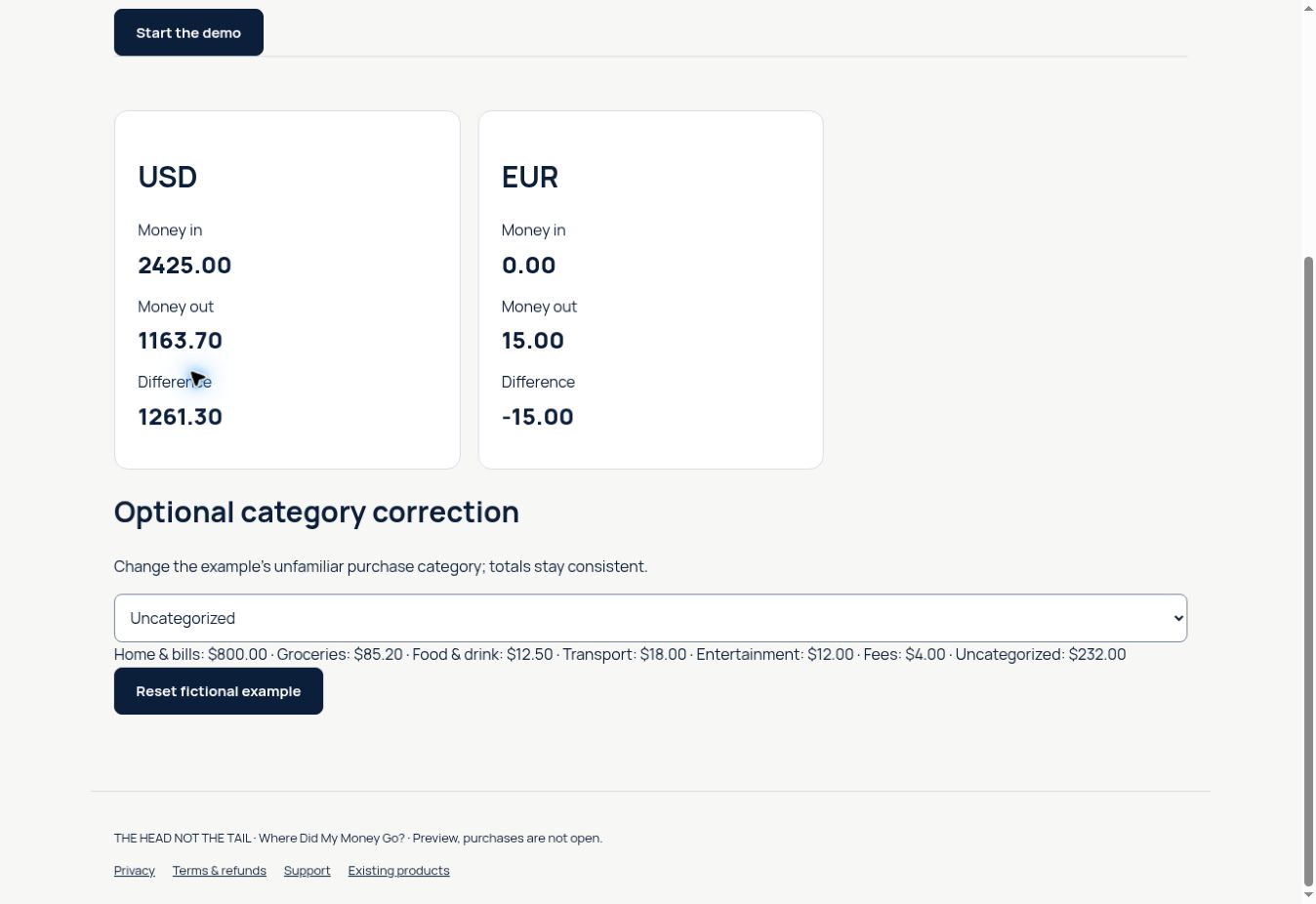
The public fictional demo shows the resulting overview without accepting files. Select Start the demo to see separate USD and EUR results. The screenshot below is that real demo, not an import screen or proof of file-picker compatibility.
Try the fictional spending overview, then see the product overview and current availability. For the next step, learn what the imported totals mean.
Devices
HTTPS desktop browsers and iPhone Safari are intended. Real desktop file-picker, Safari and network acceptance are still pending. Downloaded HTML on iPhone and offline reopening are not supported.
How to Review Bank Statement Categories
A suggested category is a starting point. A statement description can be abbreviated, and one merchant can sell different things. Review larger outflows and unclear rows against the original transaction before changing their labels.
Try one correction in the real demo
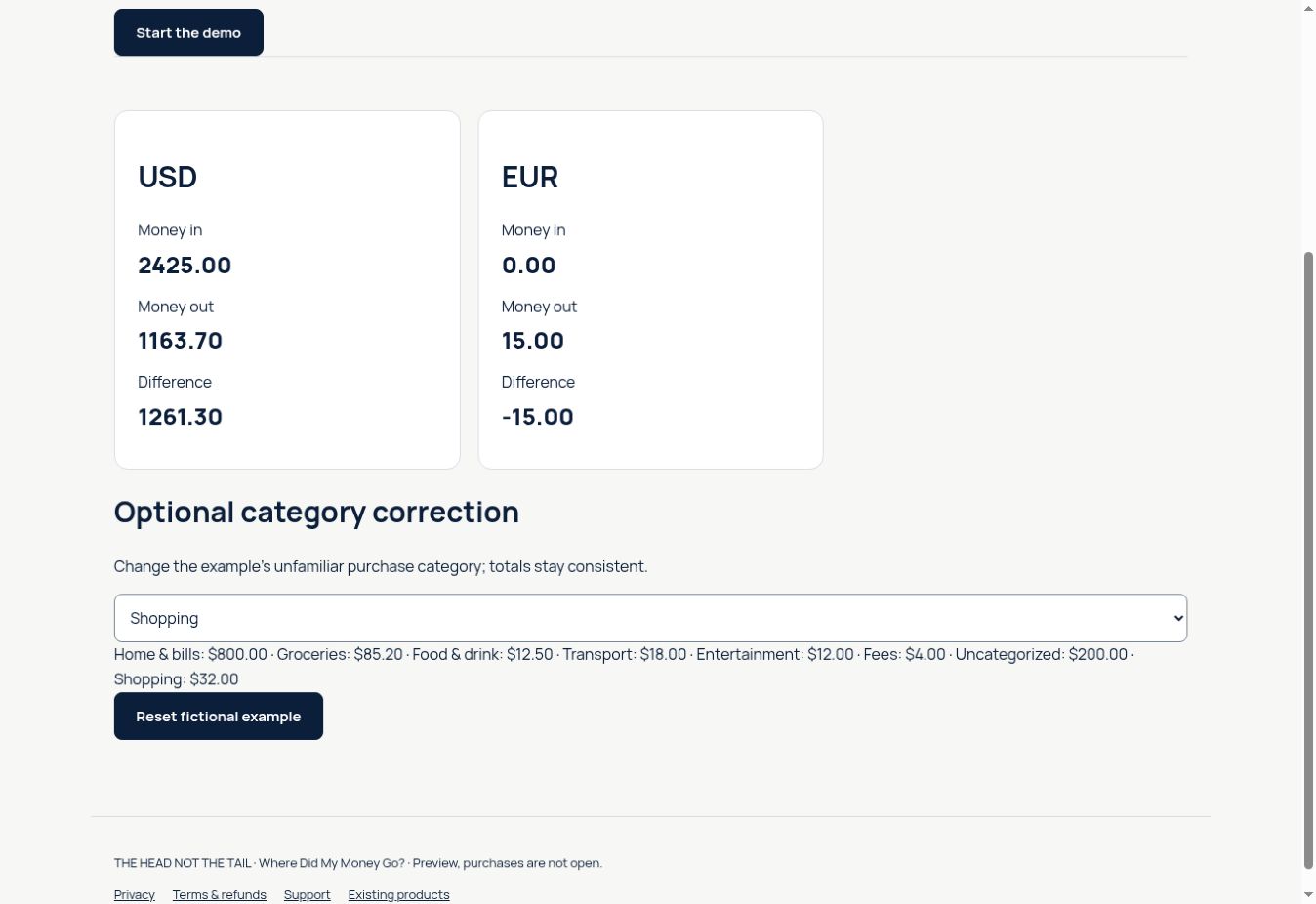
Open the fictional demo and select Start the demo. Its USD category summary initially includes $232.00 as Uncategorized. Under Optional category correction, change Example purchase category to Shopping. The invented $32.00 purchase moves to Shopping and Uncategorized becomes $200.00.
The money totals stay the same: USD 2,425.00 in, 1,163.70 out and a 1,261.30 difference. You changed how an included transaction is described, not the transaction amount. This exact change was checked in the current demo. Reset fictional example returns the demo to its starting state; start it again to compare.
Do not infer more than the statement tells you
A transfer to your own account is money leaving this account but is not necessarily a purchase. A refund is incoming money but is not necessarily earnings. A credit-card payment may settle purchases that also appear in a separate card statement. Review one account and the included period; category changes do not reconcile separate accounts, pair refunds automatically or establish tax treatment.
Keep uncertain rows visible
The current demo uses the label Uncategorized. If you cannot identify a payment, leave the uncertainty visible while you investigate. Do not remove a row just to make a category summary look cleaner. If rows are excluded in the full review, the cash totals describe only the included scope; that is a different action from changing a label.
Do Transfers, Refunds and Credit-Card Payments Count as Spending?
They all affect the movement of money through an account, but they do not all describe a new purchase. Keep a cash-movement view separate from any interpretation of what you bought.
A five-row fictional example
| Transaction | Amount | Review note |
|---|---|---|
| Example salary | +900.00 | Incoming payment |
| Transfer to own savings | −200.00 | Moved between the owner’s accounts |
| Example household purchase | −60.00 | A purchase in this example |
| Refund for that purchase | +10.00 | Returned money, confirmed by the example receipt |
| Example credit-card payment | −150.00 | Payment of a card balance; check the card statement for its underlying purchases |
For these five rows, money in is $910.00, money out is $410.00 and the difference is $500.00. It would be misleading to describe all $410 as new shopping.
Keep the transfer visible
The $200 belongs in this account’s outgoing movement even though it is not a purchase from a merchant. Calling it a transfer gives the row context; it does not make the movement disappear. Avoid combining both accounts’ exports and interpreting the transfer twice.
Check a refund before linking it to a purchase
In this invented case, the receipt establishes that the $10 refund belongs to the $60 purchase. You can note a $50 net cost for that specific purchase as your own calculation. HNT does not automatically match refunds or turn that note into an accounting or tax conclusion. The cash totals still include $60 out and $10 in.
Do not count a card payment and its purchases as new spending twice
The $150 payment leaves the checking account. The card statement may list the purchases it settles. Decide which account and question you are reviewing before combining figures. HNT’s one-account overview is not a reconciliation of several accounts.
Practise the difference between an amount and a label
In the fictional demo, select Start the demo and change Example purchase category to Shopping. The $32 purchase moves out of Uncategorized; the USD cash totals remain 2,425.00 in and 1,163.70 out. This is a category correction, not removal of the payment.
Use the totals guide if the difference is surprising, or return to category review. Keep unresolved transactions visible while you check their source.
Try the free fictional demo to see the labels in action. For the supported statement review and current purchase status, visit Where Did My Money Go? Purchases are currently closed; the demo does not accept your files.
All transactions in the table are invented for explanation. This guide describes review choices, not personalized financial, tax or accounting advice.
Practise the category change in the demo, then see the product overview and current availability. For the next step, compare cash totals with category labels.
What Do Money In, Money Out and Difference Mean?
Money in is the incoming movement included in the review. Money out is the included outgoing movement. Difference is money in minus money out for that scope. These labels describe cash movement; they are not automatically salary, personal spending, business revenue or profit.
Read the actual fictional demo
Select Start the demo. In USD, the displayed calculation is 2,425.00 − 1,163.70 = 1,261.30. The separate EUR result is 0.00 − 15.00 = −15.00. Do not add these differences together: the app keeps currencies separate and does not convert them.
A positive difference is not your balance
For illustration, suppose an account started with $600.00 and these USD movements were the only changes. Adding the $1,261.30 movement would give $1,861.30. The demo does not calculate or verify that ending balance; the $600.00 opening balance is an extra fictional assumption. Your bank’s balance may include movements outside the imported period.
Check a surprising result
Compare the included dates and rows with the original export. Check debit/credit direction, the currency, flagged or excluded rows and repeated imports. A partial import produces a partial overview. Changing a category does not change the amount of an included payment; excluding a payment changes the scope.
The overview helps explain transactions already present in a supported statement. It does not predict future bills, guarantee savings or establish accounting profit. Start with the demo to learn the labels, then check your own supported review against its source.
Explore the separate-currency demo, then see the product overview and current availability. For the next step, check supported input formats.