
Statement review guide
How to Analyze a Bank Statement for Spending
A useful spending review begins with one account, one statement period and a question: which transactions explain the money that left this account? You can do the exercise on paper or in a spreadsheet. A statement analyzer can help organize supported files, but the original statement remains your reference.
1. Set the boundaries before adding anything
Write down the account, statement dates and currency. Check that all pages or exported rows belong to that period. Keep the original file unchanged. Avoid combining overlapping exports or several accounts into a single spending total: a transfer can appear on both sides.
If you use Where Did My Money Go?, first check its supported CSV and text-PDF layouts. A .pdf extension does not mean the layout will work. The app reviews one account at a time and keeps currencies separate.
2. Separate money received from money paid out
This invented USD example uses positive amounts for incoming money and negative amounts for outgoing money. Your export may use separate debit and credit columns instead; follow its labels.
| Date | Description | Signed amount |
|---|---|---|
| September 2 | Example salary | +3,200.00 |
| September 3 | Example rent | −1,200.00 |
| September 6 | Example groceries | −96.40 |
| September 8 | Transfer to own savings | −250.00 |
| September 10 | Example credit-card payment | −180.00 |
| September 12 | Example media payment | −11.00 |
| September 19 | Example store refund | +18.00 |
| September 30 | Example account fee | −4.00 |
Money in is $3,218.00. Money out is $1,741.40. The difference is $1,476.60. These are totals for the eight example rows, not an account balance or a prediction of what you can spend next month.
3. Ask what the outflows represent
The $250 transfer left this account, but it moved to the owner’s savings. The $180 card payment may settle purchases listed on another statement. The $18 refund is incoming money, but it is not salary. Keep those distinctions in your notes instead of calling every outflow a new purchase and every inflow earnings.
Group known purchases into a few useful categories. Leave an unfamiliar description unresolved until you can match it to a receipt or another reliable record. Do not delete a confusing row just to make the overview look tidy.
4. Use the app’s overview as a checkable starting point
The actual free demo uses a different, built-in fictional dataset. Select Start the demo: its USD totals are 2,425.00 in, 1,163.70 out and a 1,261.30 difference. EUR remains a separate result. Changing the example purchase category to Shopping moves $32 into that category without changing the cash totals.
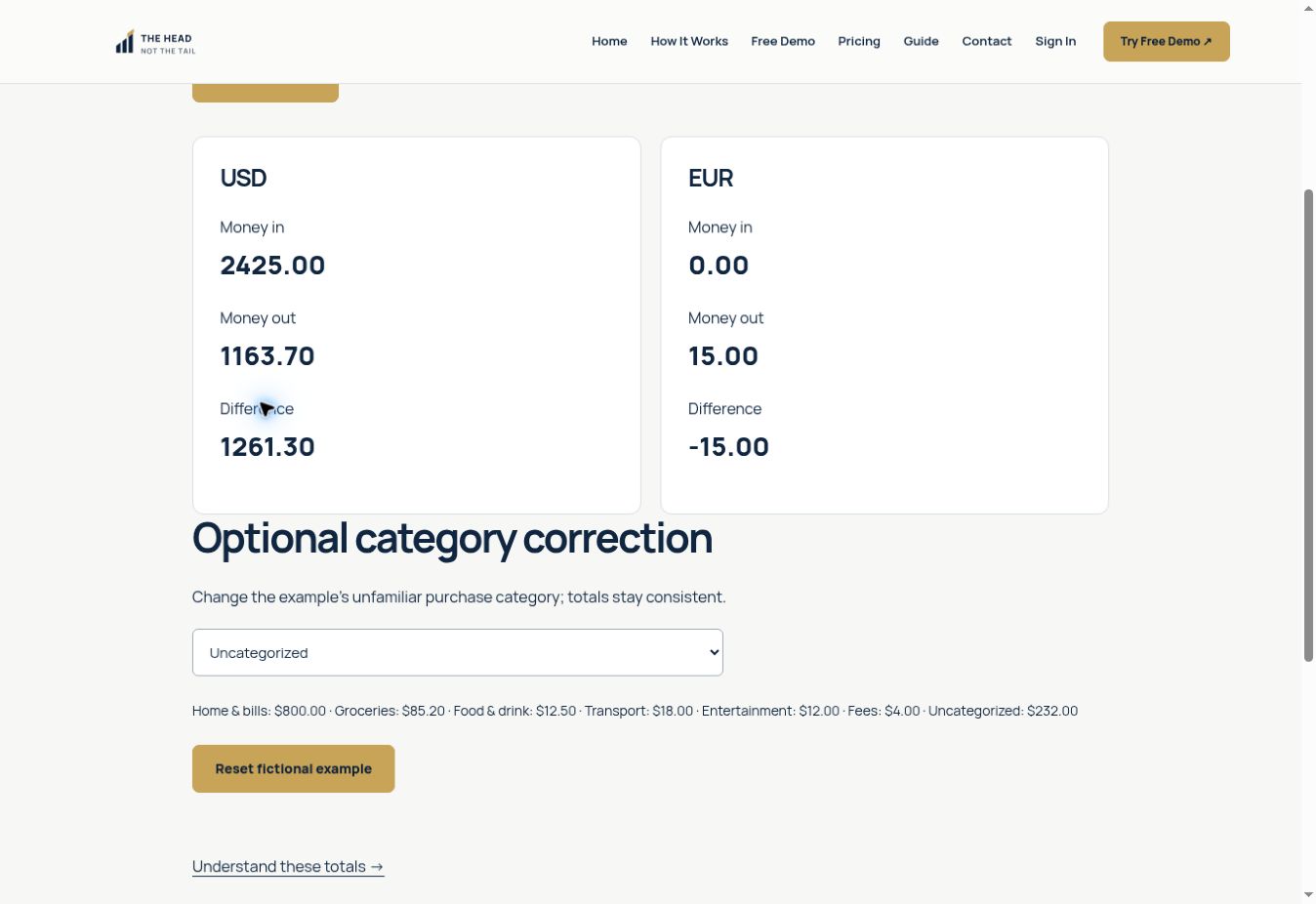
That demonstrates the overview and a category correction. It does not demonstrate importing the eight rows above. The public demo does not accept uploads, and not every bank’s PDF or CSV is supported in the full app.
5. Finish with a short review note
Record the period you checked, the main known outflows and any unresolved rows. Compare included rows and flagged exclusions with the original statement before calling the review complete. A partial import produces a partial overview.
Your next action might simply be to identify the $11 payment or confirm the $18 refund. The exercise does not require buying anything, changing investments or making a spending promise.
For the detailed checks, use category review and money-in and money-out totals.
Try the free fictional demo to see the labels in action. For the supported statement review and current purchase status, visit Where Did My Money Go? Purchases are currently closed; the demo does not accept your files.
Background reference: TD Bank: What Is a Bank Statement & How to Read Them. The worked examples here are original and fictional. This is transaction-review education, not personalized financial, tax or accounting advice.
Examples are fictional. App behavior is illustrated with the public demo; supported formats and limitations are documented separately. These guides explain transaction review and do not provide personalized financial, tax or accounting advice.